Free-Solutions OS / Green Spider :
What it is and what it is not :Green Spider is the release name of Free-Solutions OS. It is pure GPL/GNU Linux based on Debian- Ubuntu/Kubuntu. Works in most PC & Mac Hardware
So usual GPL licence and restrictions applies for the key and its entire content. Green Spider is not a Brand, just a release name that associate an animal with a color. Green Spider make sense as this first key enable great recycling for Old Hardwares, so a green way to surf the web. It is a full OS running into a USB Key. In other words your entire PC is within the Key and can run on any hardware. Free-Solutions is selling and delivering the pre-configured and ready to use USB-KEY NEVER - NEVER Unplug the key while running. Ensure PC is powered down before retrieving your key even if you do a force shutdown. If you have any problem, do a hard reboot before removing the key Preconfigured application list Sandisk Ultra Fit
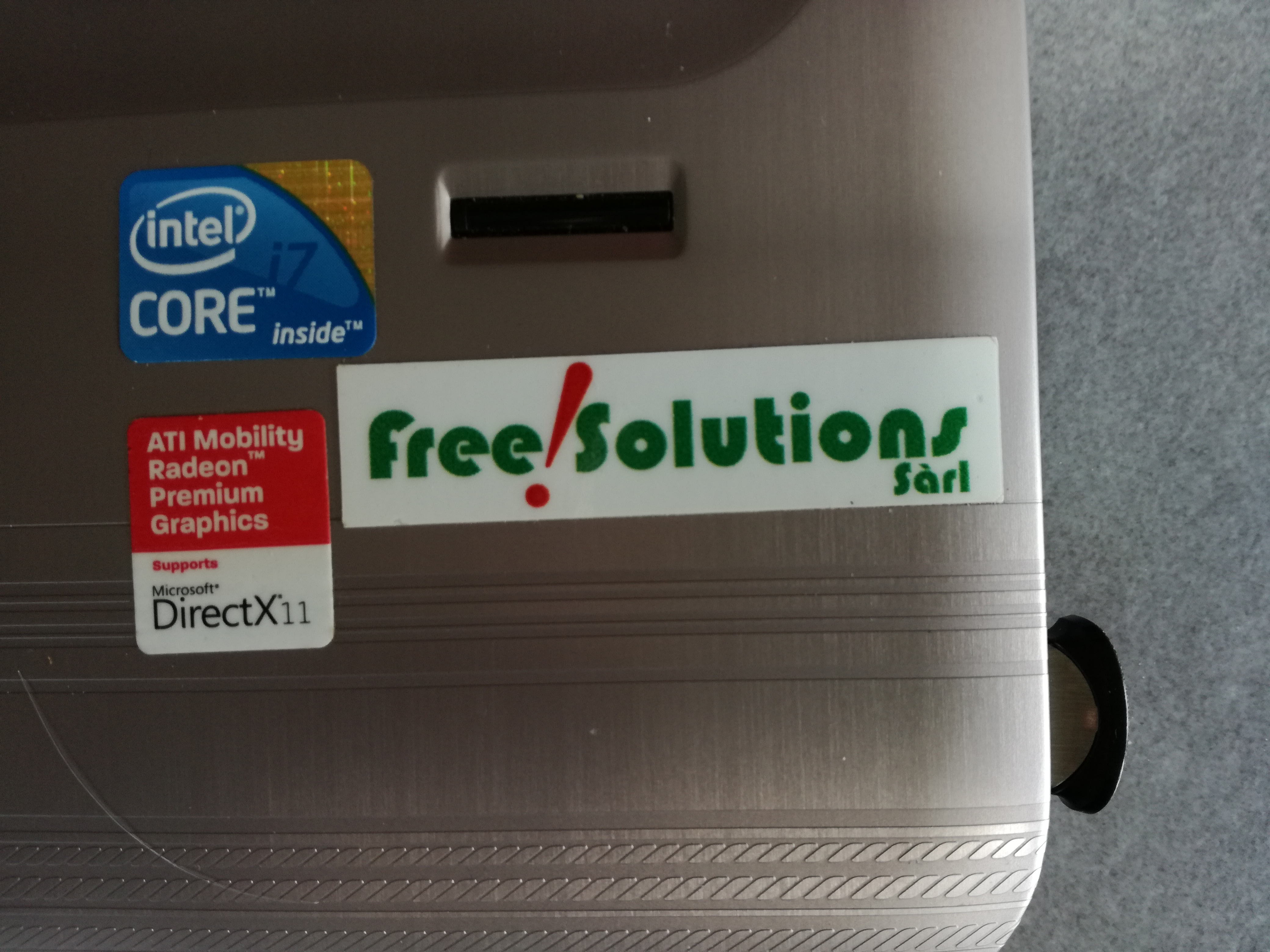
| HP DV6 Touch Screen |
|---|
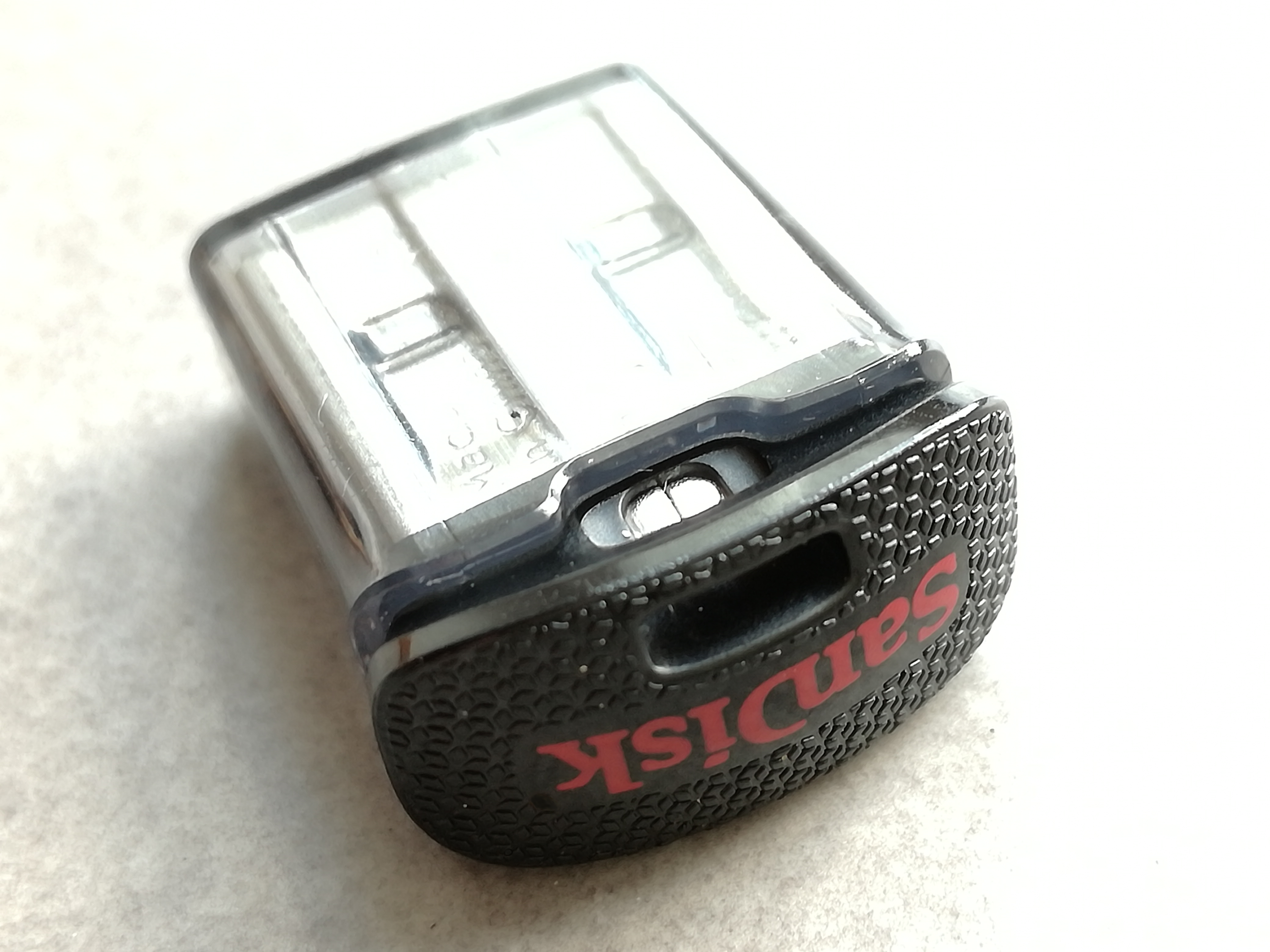
| 
| 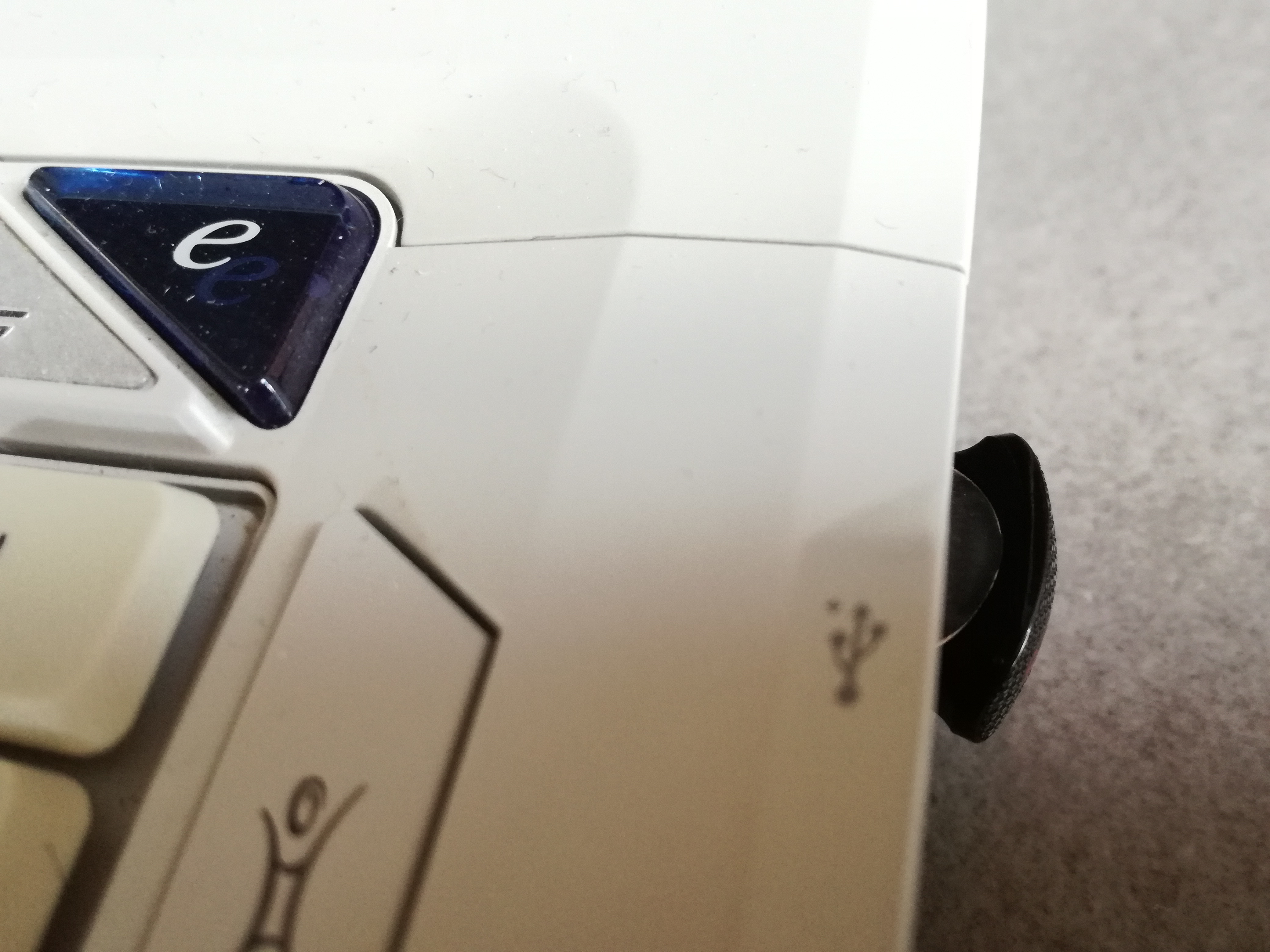 | 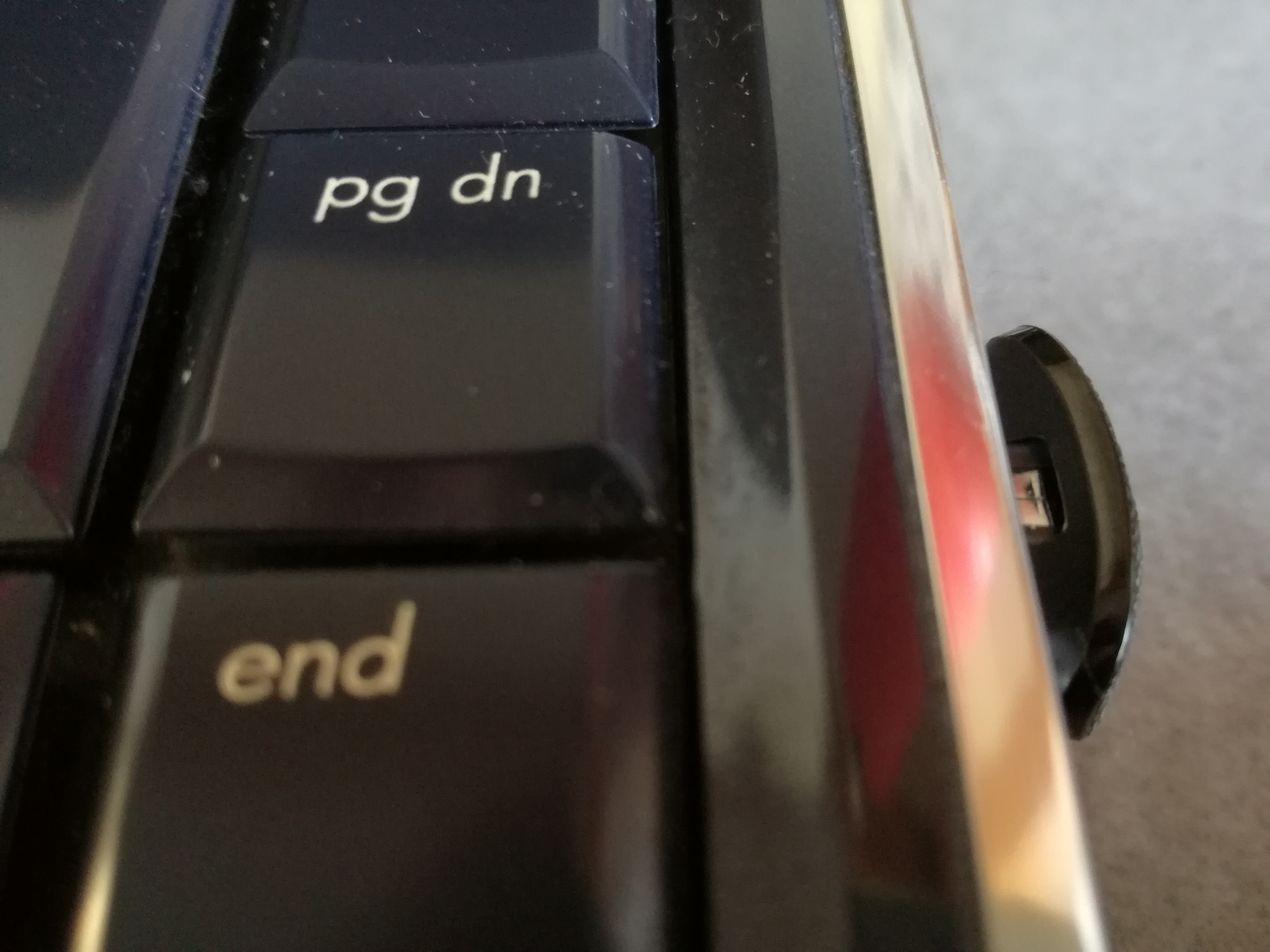 |
Boot sequence 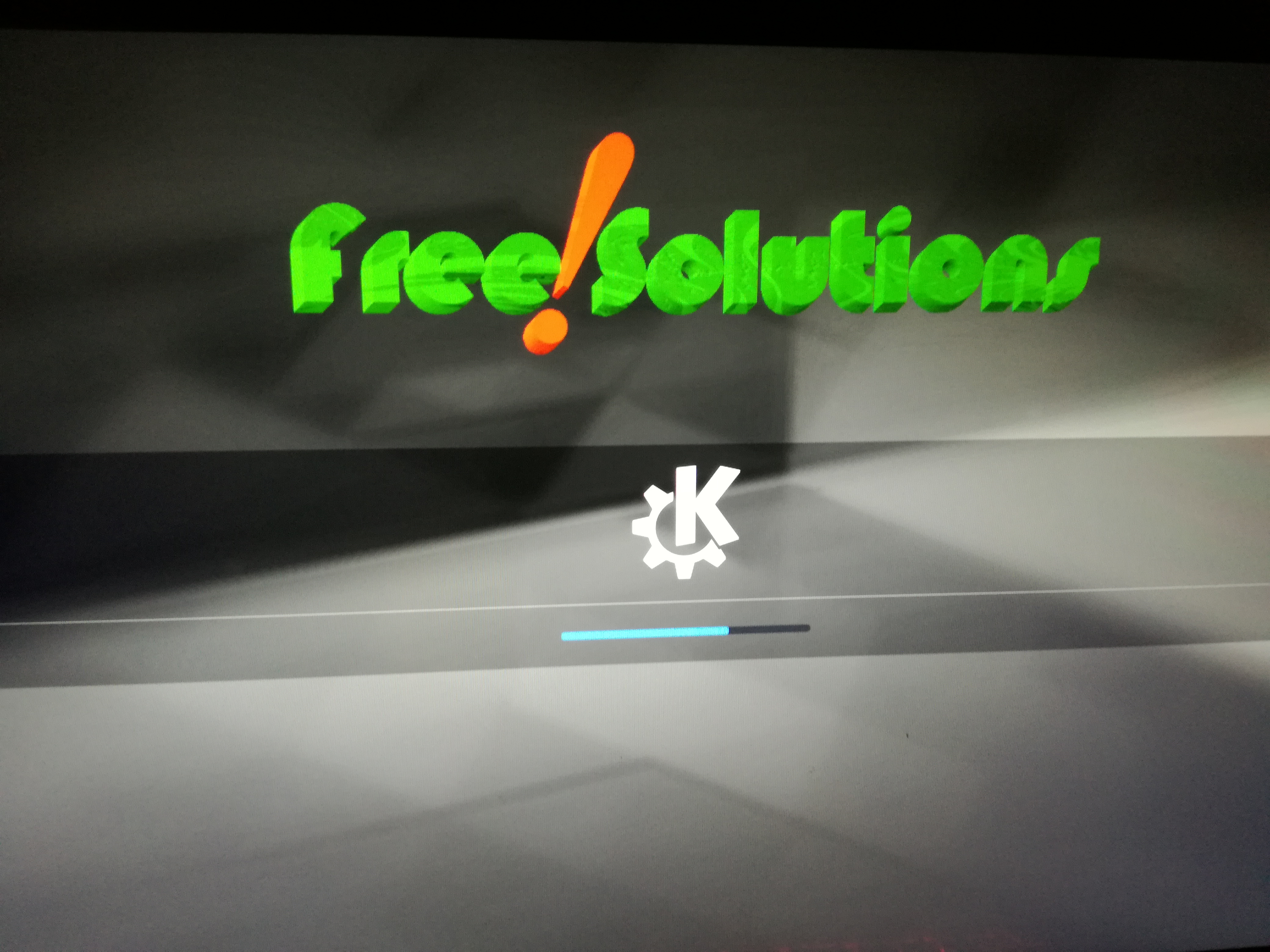
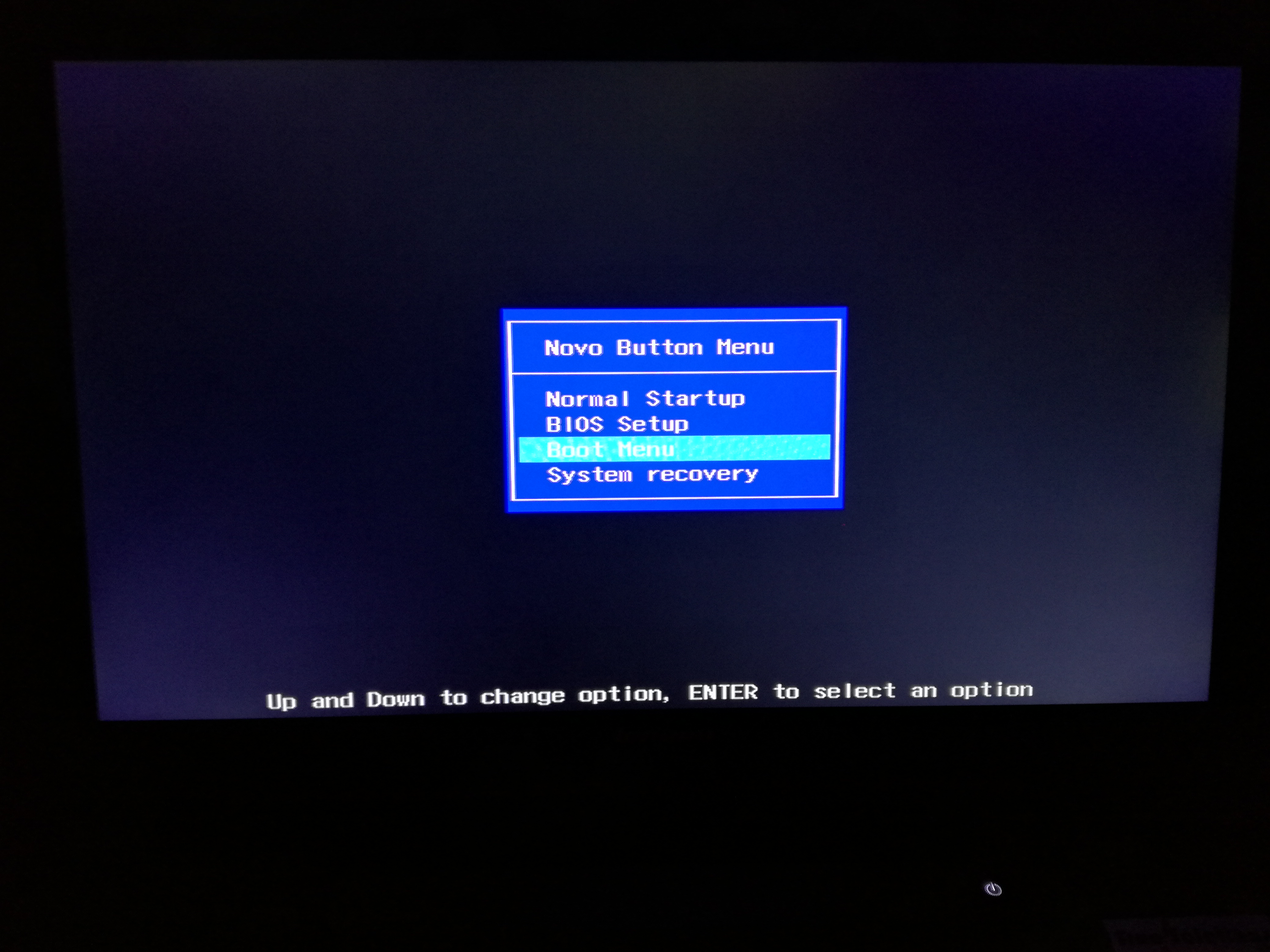
1-Boot from USB Check and find correct key to press at boot
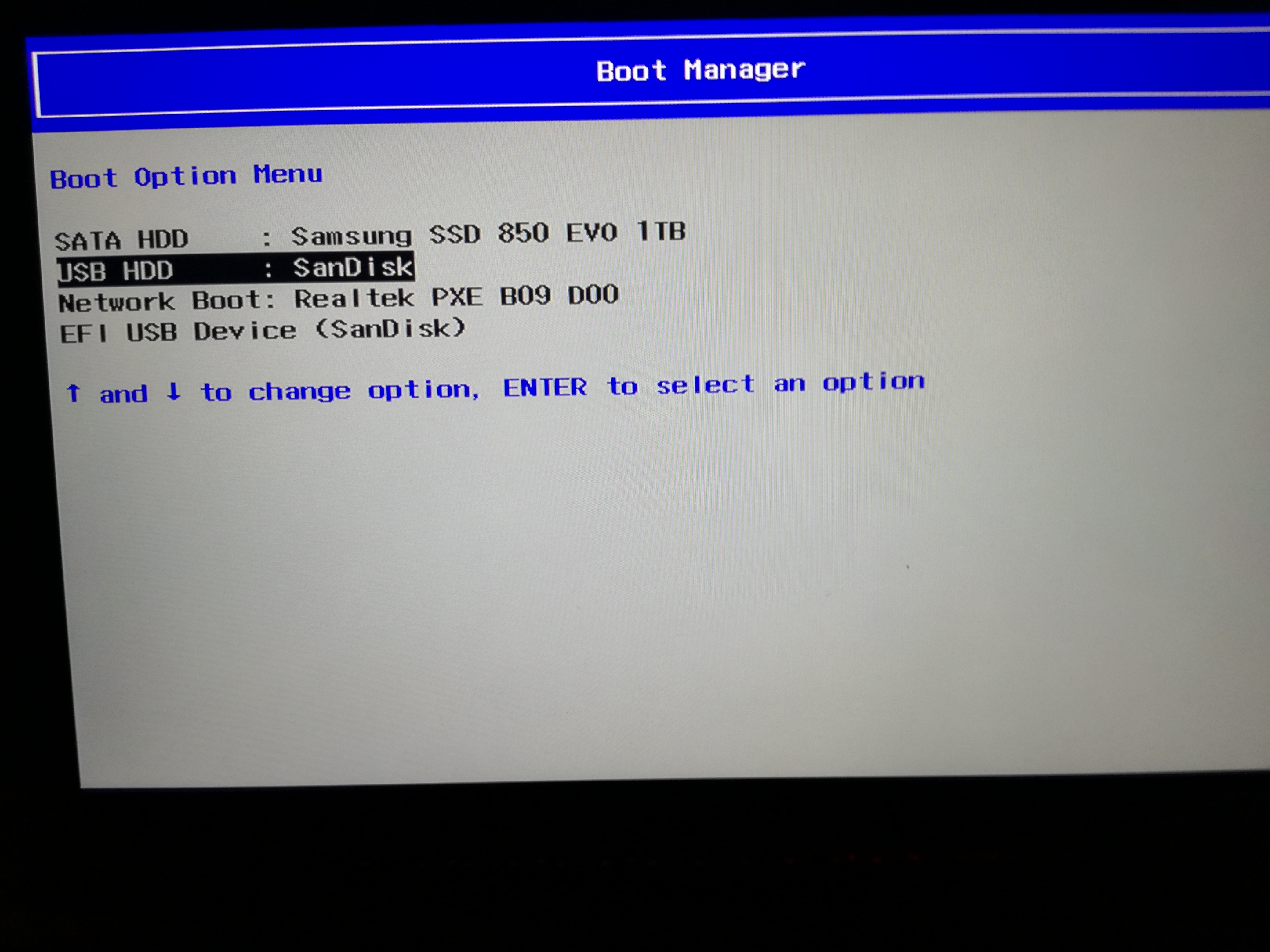
Make sure you are booting on USB, check BIOS if necessary Check this document / USB Boot howto See table at the end of this document : Start your Boot menu(check boot howto)
| Choose USB device too boot on
|
|---|
| 
|
If you start on USB, you get into the following menu :Kubuntu Boot menu, use default
|
|---|
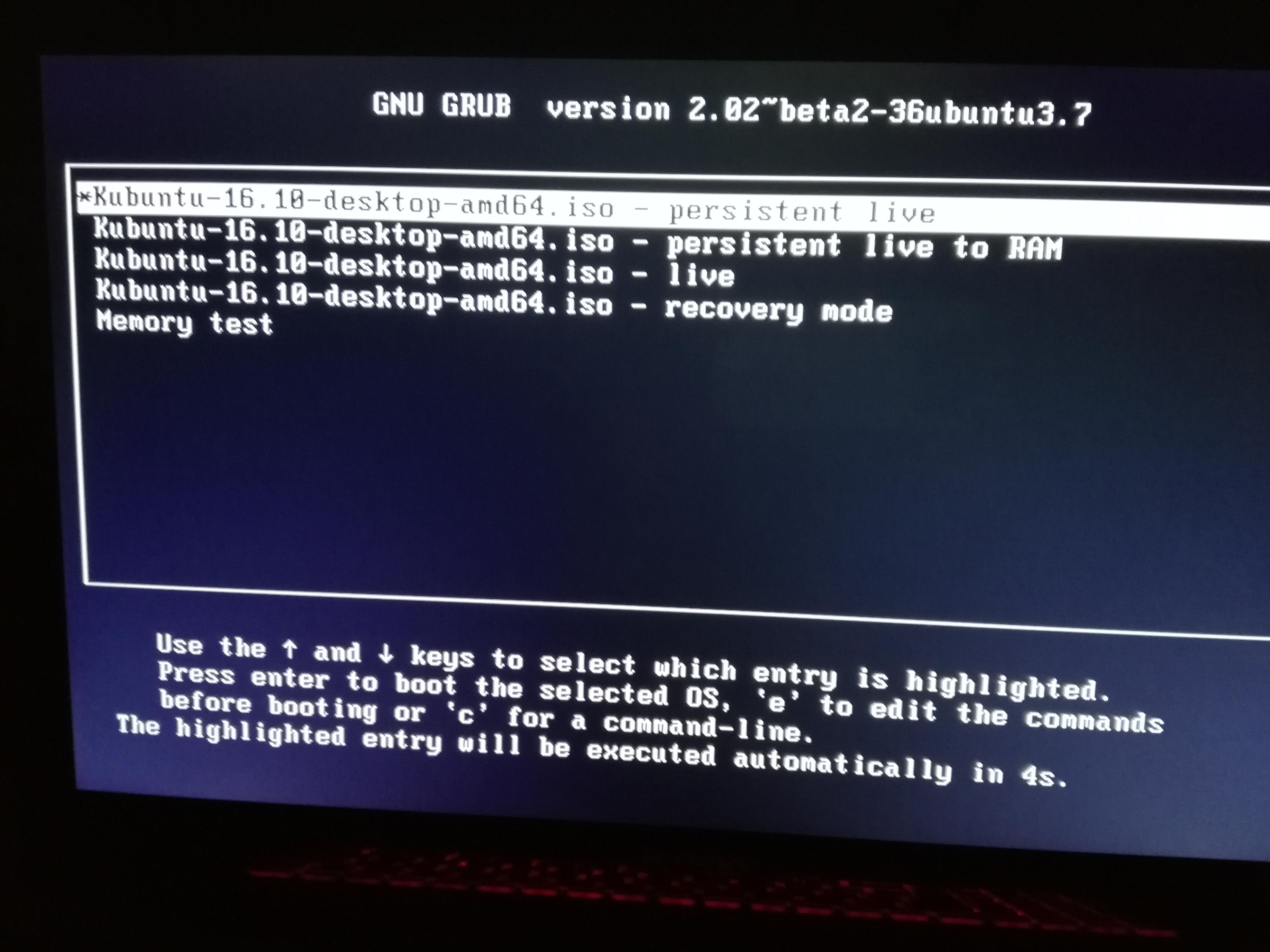 |
If you do not have this menu, double check USB boot howto instructions for your computer Choose default Persistant live, or wait
-Drink a coffee, be patient your system is loading (3mn-till 10mn on old HW, first time) -Wait for green spider to show up on your screen You will go through several states, Black screen at boot is normal, cursor is blinking, just wait untill You get Login Screen After 3 to 10 min you get the login screen, be patient on old machines as HW config is built on the fly at first boot Login Screen : By default, password=12345678, feel free to set a Password to lock your Key 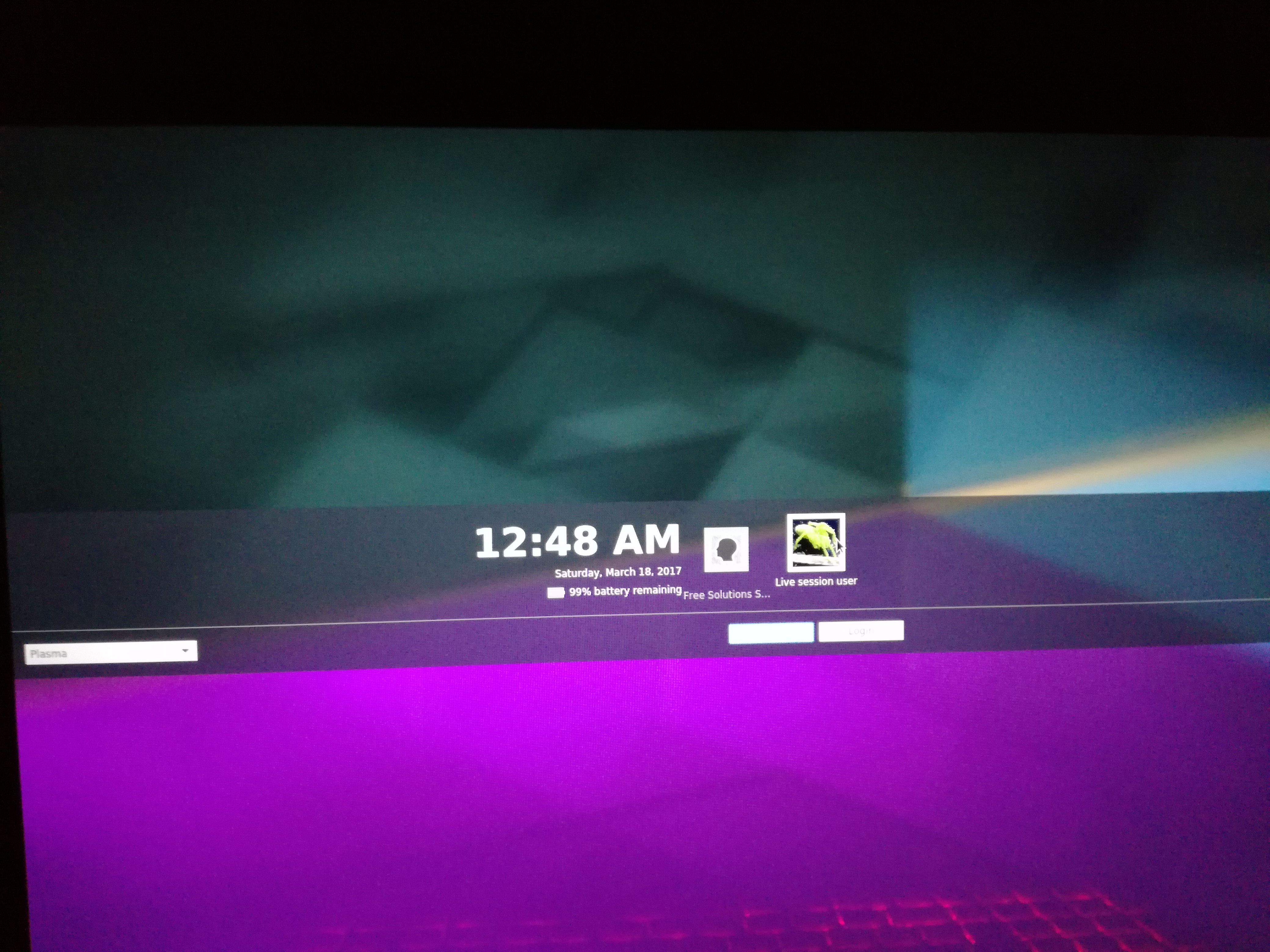
Then
And finally you enter your session, your computer is ready to use, have fun 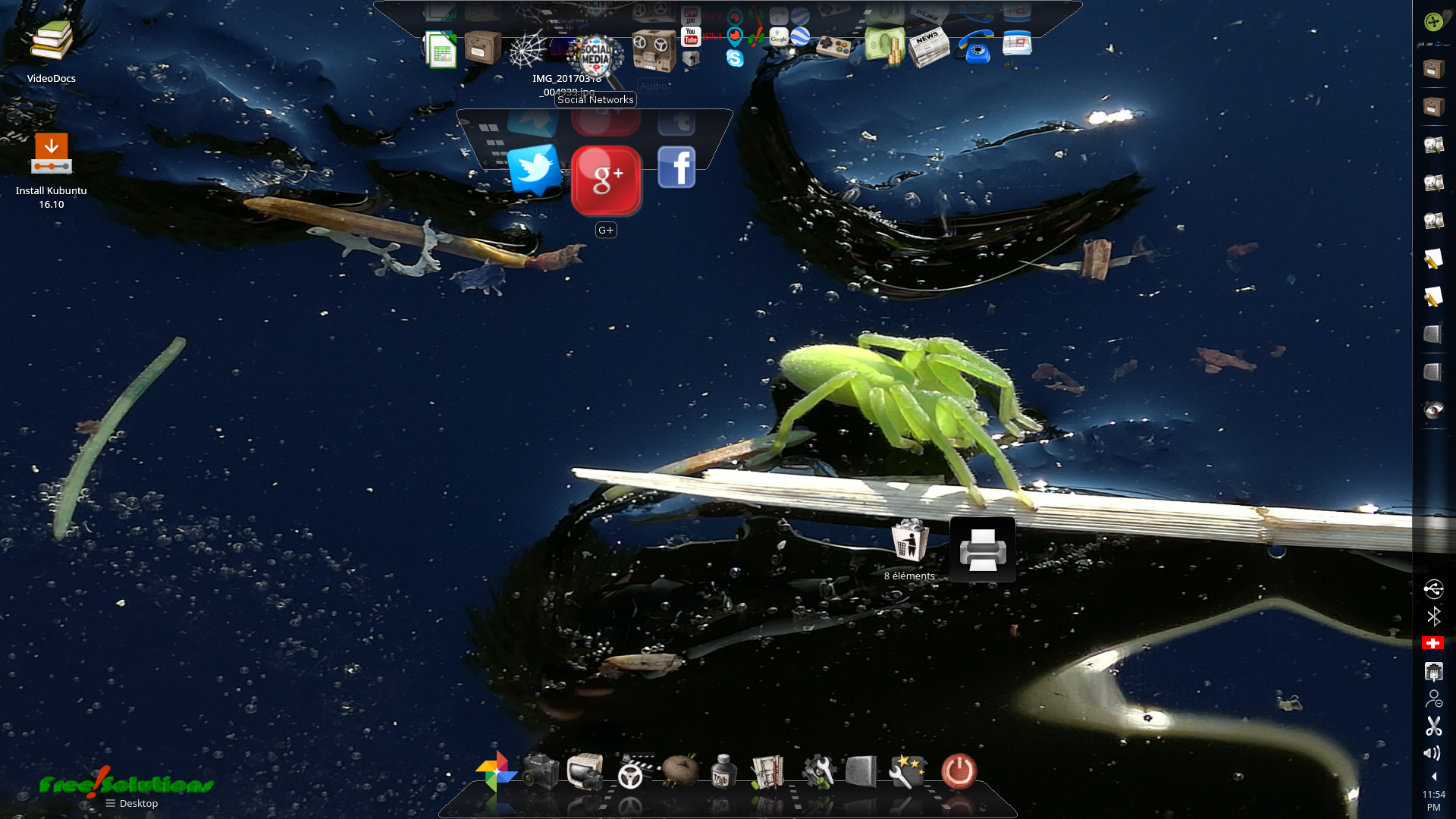
USB Key and instructions for each vendorBelow is a list of PC brands with their corresponding hot-keys. | Manufacturer | Type | Models | Boot Menu | Boot Once | BIOS Key | Change Priority |
|---|
| ACER | | | Esc, F12, F9 | | Del, F2 | | | ACER | netbook | AspireOne, Aspire Timeline | F12 | | F2 | | | ACER | netbook | Aspire v3, v5, v7 | F12 | The "F12 Boot Menu" must be enabled in BIOS. It is disabled by default. | F2 | | | APPLE | | After 2006 | Option | | | | | ASUS | desktop | | F8 | | F9 | | | ASUS | laptop | | Esc | | F9 | | | ASUS | laptop | R503C | F8 | | DEL | | | ASUS | netbook | Eee PC 1025c | Esc | | F2 | Boot Tab, Boot Device Priority, 1st Boot Device, Removable Device, F10 | | COMPAQ | | Presario | Esc, F9 | | F10 | BIOS "Advanced Tab", Boot Order | | DELL | desktop | Dimension, Inspiron, Latitude | F12 | Select "USB Flash Drive" | F2 | | | DELL | desktop | Inspiron One 2020, 2305, 2320, 2330 All-In-One | F12 | Select "USB Flash Drive" | F2 | | | DELL | laptop | Inspiron | F12 | Select "USB Storage Device" | F2 | Settings->General->Boot Sequence->"USB Storage Device", then up arrow, [Apply]--[Exit] | | DELL | laptop | Precision | F12 | Select "USB Storage Device" from boot menu | F12 | | | EMACHINES | | | F12 | | Tab, Del | | | HP | generic | | Esc, F9 | | Esc, F10, F1 | | | HP | desktop | Media Center | Esc | | F10 | BIOS "Advanced" tab, Boot Order, Move "USB Device" before "Hard Drive" | | HP | desktop | Pavilion 23 All In One | Esc | Select boot media from the menu | F10 | BIOS "Advanced" tab, Boot Order, Move "USB Device" before "Hard Drive". For non-UEFI media, disable secure boot and enable legacy support | | HP | desktop | Pavilion g6 and g7 | Esc | | F10 | BIOS "Advanced" tab, Boot Order, Move "USB Device" before "Hard Drive" | | HP | desktop | Pavilion HPE PC, h8-1287c | Esc | Then F9 for "Boot Menu" | Esc F10 | Storage tab, Boot Order, Legacy Boot Sources | | HP | desktop | Pavilion PC, p6 2317c | Esc | Then F9 for "Boot Menu" | Esc F10 | Storage tab, Boot Order, Legacy Boot Sources | | HP | desktop | Pavilion PC, p7 1297cb | Esc | Then F9 for "Boot Menu" | Esc F10 | Storage tab, Boot Order, Legacy Boot Sources | | HP | desktop | TouchSmart 520 PC | Esc | Then F9 for "Boot Menu" | Esc F10 | Storage tab, Boot Order, Legacy Boot Sources | | HP | laptop | 2000 | Esc | Select "Patriot Memory" on the Boot Option Menu | Esc | | | HP | notebook | Pavilion | Esc | | F10 | BIOS "Advanced" tab, Boot Order, Move "USB Device" before "Hard Drive" | | HP | notebook | ENVY dv6 and dv7 PC | Esc | Then F9 for "Boot Menu" | Esc | F10 Storage tab, Boot Order, Legacy Boot Sources | | INTEL | | | F10 | | | | | LENOVO | desktop | | F12, F8, F10 | | F1, F2 | | | LENOVO | laptop | | F12 | | F1, F2 | | | LENOVO | laptop | IdeaPad P500 | F12 or Fn + F11 | | F2 | | | NEC | | | F5 | | F2 | | | PACKARD BELL | | | F8 | | F1, Del | | | SAMSUNG | | | F12, Esc | | | | | SAMSUNG | netbook | NC10 | Esc | | F2 | Boot Tab, Select "Boot Device Priority", Press Return, Up/Down to Highlight, F6/F5 to change priority | | SAMSUNG | ultrabook | Series 5 Ultra and Series 7 Chronos | Esc | | F2 | Boot Tab, Select "Boot Device Priority", Press Return, Up/Down to Highlight, F6/F5 to change priority | | SHARP | | | | | F2 | | | SONY | | VAIO, PCG, VGN | F11 | | F1, F2, F3 | | | SONY | | VGN Esc | F10 | | F2 | BIOS "BOOT" section, "External Device Boot" enabled | | TOSHIBA | | Protege, Satellite, Tecra | F12 | | F1, Esc | | | TOSHIBA | | Equium F12 | F12 | | F12 |
| Hardware requirements :Works on most PC Hardware less than 10y old. Works also on most Mac hardware. Limitations : WIFI support for some Apple Hardware
|
Free-Solutions
OS
/
Green
Spider
:
What
it
is
and
what
it
is
not
:
Green
Spider
is
the
release
name
of
Free-Solutions
OS.
It
is
pure
GPL/
GNU
Linux
based
on
Debian-
Ubuntu/Kubuntu
.
Works
in
most
PC
&
Mac
Hardware
So
usual
GPL
licence
and
restrictions
applies
for
the
key
and
its
e
ntire
conte
nt.
Green
Spider
is
not
a
Brand,
just
a
release
name
that
associate
an
animal
with
a
color.
Green
Spider
make
sense
as
this
first
key
enable
great
recycling
for
Old
Hardwares,
so
a
green
way
to
surf
the
web.
It
is
a
full
OS
running
into
a
USB
Key.
In
other
words
your
entire
PC
is
within
the
Key
and
can
run
on
any
hardware.
Free-Solutions
is
selling
and
delivering
the
pre-configured
and
ready
to
use
USB-KEY
NEVER
-
NEVER
Unplug
the
key
while
running.
Ensure
PC
is
powered
down
before
retrieving
your
key
even
if
you
do
a
force
shutdown.
If
you
have
any
problem,
do
a
hard
reboot
before
removing
the
key
Preconfigured
application
list
Sandisk
Ultra
Fit
|
HP
DV6
Touch
Screen
|
|
|
|
|
|
Boot
sequence
1-Boot
from
USB
Check
and
find
correct
key
to
press
at
boot
Make
sure
you
are
booting
on
USB,
check
BIOS
if
necessary
Check
this
document
/
USB
Boot
howto
See
table
at
the
end
of
this
document
:
Start
your
Boot
menu(check
boot
howto)
|
Choose
USB
device
too
boot
on
|
|
|
If
you
start
on
USB,
you
get
into
the
following
menu
:
Kubuntu
Boot
menu,
use
default
|
|
|
If
you
do
not
have
this
menu,
double
check
USB
boot
howto
instructions
for
your
computer
Choose
default
Persistant
live,
or
wait
-Drink
a
coffee,
be
patient
your
system
is
loading
(3mn-till
10mn
on
old
HW,
first
time)
-Wait
for
green
spider
to
show
up
on
your
screen
You
will
go
through
several
states,
Black
screen
at
boot
is
normal,
cursor
is
blinking,
just
wait
untill
You
get
Login
Screen
After
3
to
10
min
you
get
the
login
screen
,
be
patient
on
old
machines
as
HW
config
is
built
on
the
fly
at
first
boot
Login
Screen
:
By
default,
password=12345678
,
feel
free
to
set
a
Password
to
lock
your
Key
Then
And
finally
you
enter
your
session,
your
computer
is
ready
to
use,
have
fun
Maintenance
:
You
need
to
do
a
File
Système
check
to
correct
inode
and
file
ssytem
errors
To
check
and
correct
disk
errors
:
-Boot
"live"
:
3rd
option
from
boot
menu
-Open
a
terminal
and
:
type
or
cut
and
paste
|
|
sudo
su
setxkbmap
ch
fsck
-y
/dev/sdb5
|
fsck
is
correcting
any
disk
inconsistancies,
needs
to
be
done
every
1-3
month
Patches
:
Apply
Patches
,
currently
Patch
1
&
Patch
2
Software
upgrade
:
Once
Patch
are
applied,
perform
Software
upgrades
via
discovery
app
or
Open
a
Terminal
and
do
:
sudo
apt-get
update
sudo
apt-get
upgrade
USB
Key
and
instructions
for
each
vendor
Below
is
a
list
of
PC
brands
with
their
corresponding
hot-keys.
|
Manufacturer
|
Type
|
Models
|
Boot
Menu
|
Boot
Once
|
BIOS
Key
|
Change
Priority
|
|
ACER
|
|
|
Esc,
F12,
F9
|
|
Del,
F2
|
|
|
ACER
|
netbook
|
AspireOne,
Aspire
Timeline
|
F12
|
|
F2
|
|
|
ACER
|
netbook
|
Aspire
v3,
v5,
v7
|
F12
|
The
"F12
Boot
Menu"
must
be
enabled
in
BIOS.
It
is
disabled
by
default.
|
F2
|
|
|
APPLE
|
|
After
2006
|
Option
|
|
|
|
|
ASUS
|
desktop
|
|
F8
|
|
F9
|
|
|
ASUS
|
laptop
|
|
Esc
|
|
F9
|
|
|
ASUS
|
laptop
|
R503C
|
F8
|
|
DEL
|
|
|
ASUS
|
netbook
|
Eee
PC
1025c
|
Esc
|
|
F2
|
Boot
Tab,
Boot
Device
Priority,
1st
Boot
Device,
Removable
Device,
F10
|
|
COMPAQ
|
|
Presario
|
Esc,
F9
|
|
F10
|
BIOS
"Advanced
Tab",
Boot
Order
|
|
DELL
|
desktop
|
Dimension,
Inspiron,
Latitude
|
F12
|
Select
"USB
Flash
Drive"
|
F2
|
|
|
DELL
|
desktop
|
Inspiron
One
2020,
2305,
2320,
2330
All-In-One
|
F12
|
Select
"USB
Flash
Drive"
|
F2
|
|
|
DELL
|
laptop
|
Inspiron
|
F12
|
Select
"USB
Storage
Device"
|
F2
|
Settings->General->Boot
Sequence->"USB
Storage
Device",
then
up
arrow,
[Apply]--[Exit]
|
|
DELL
|
laptop
|
Precision
|
F12
|
Select
"USB
Storage
Device"
from
boot
menu
|
F12
|
|
|
EMACHINES
|
|
|
F12
|
|
Tab,
Del
|
|
|
HP
|
generic
|
|
Esc,
F9
|
|
Esc,
F10,
F1
|
|
|
HP
|
desktop
|
Media
Center
|
Esc
|
|
F10
|
BIOS
"Advanced"
tab,
Boot
Order,
Move
"USB
Device"
before
"Hard
Drive"
|
|
HP
|
desktop
|
Pavilion
23
All
In
One
|
Esc
|
Select
boot
media
from
the
menu
|
F10
|
BIOS
"Advanced"
tab,
Boot
Order,
Move
"USB
Device"
before
"Hard
Drive".
For
non-UEFI
media,
disable
secure
boot
and
enable
legacy
support
|
|
HP
|
desktop
|
Pavilion
g6
and
g7
|
Esc
|
|
F10
|
BIOS
"Advanced"
tab,
Boot
Order,
Move
"USB
Device"
before
"Hard
Drive"
|
|
HP
|
desktop
|
Pavilion
HPE
PC,
h8-1287c
|
Esc
|
Then
F9
for
"Boot
Menu"
|
Esc
F10
|
Storage
tab,
Boot
Order,
Legacy
Boot
Sources
|
|
HP
|
desktop
|
Pavilion
PC,
p6
2317c
|
Esc
|
Then
F9
for
"Boot
Menu"
|
Esc
F10
|
Storage
tab,
Boot
Order,
Legacy
Boot
Sources
|
|
HP
|
desktop
|
Pavilion
PC,
p7
1297cb
|
Esc
|
Then
F9
for
"Boot
Menu"
|
Esc
F10
|
Storage
tab,
Boot
Order,
Legacy
Boot
Sources
|
|
HP
|
desktop
|
TouchSmart
520
PC
|
Esc
|
Then
F9
for
"Boot
Menu"
|
Esc
F10
|
Storage
tab,
Boot
Order,
Legacy
Boot
Sources
|
|
HP
|
laptop
|
2000
|
Esc
|
Select
"Patriot
Memory"
on
the
Boot
Option
Menu
|
Esc
|
|
|
HP
|
notebook
|
Pavilion
|
Esc
|
|
F10
|
BIOS
"Advanced"
tab,
Boot
Order,
Move
"USB
Device"
before
"Hard
Drive"
|
|
HP
|
notebook
|
ENVY
dv6
and
dv7
PC
|
Esc
|
Then
F9
for
"Boot
Menu"
|
Esc
|
F10
Storage
tab,
Boot
Order,
Legacy
Boot
Sources
|
|
INTEL
|
|
|
F10
|
|
|
|
|
LENOVO
|
desktop
|
|
F12,
F8,
F10
|
|
F1,
F2
|
|
|
LENOVO
|
laptop
|
|
F12
|
|
F1,
F2
|
|
|
LENOVO
|
laptop
|
IdeaPad
P500
|
F12
or
Fn
+
F11
|
|
F2
|
|
|
NEC
|
|
|
F5
|
|
F2
|
|
|
PACKARD
BELL
|
|
|
F8
|
|
F1,
Del
|
|
|
SAMSUNG
|
|
|
F12,
Esc
|
|
|
|
|
SAMSUNG
|
netbook
|
NC10
|
Esc
|
|
F2
|
Boot
Tab,
Select
"Boot
Device
Priority",
Press
Return,
Up/Down
to
Highlight,
F6/F5
to
change
priority
|
|
SAMSUNG
|
ultrabook
|
Series
5
Ultra
and
Series
7
Chronos
|
Esc
|
|
F2
|
Boot
Tab,
Select
"Boot
Device
Priority",
Press
Return,
Up/Down
to
Highlight,
F6/F5
to
change
priority
|
|
SHARP
|
|
|
|
|
F2
|
|
|
SONY
|
|
VAIO,
PCG,
VGN
|
F11
|
|
F1,
F2,
F3
|
|
|
SONY
|
|
VGN
Esc
|
F10
|
|
F2
|
BIOS
"BOOT"
section,
"External
Device
Boot"
enabled
|
|
TOSHIBA
|
|
Protege,
Satellite,
Tecra
|
F12
|
|
F1,
Esc
|
|
|
TOSHIBA
|
|
Equium
F12
|
F12
|
|
F12
|
|
Hardware
requirements
:
Works
on
most
PC
Hardware
less
than
10y
old.
Works
also
on
most
Mac
hardware.
Limitations
:
WIFI
support
for
some
Apple
Hardware
|